Popup Linking to FlipBook on shopify store using "FlipBook Display" App Block
In the previous part, we learned about Linking to FlipBook on shopify store using "FlipBook Display" App Block. Now we will explore linking to FlipBook on shopify store using "FlipBook Display" App Block

Initiating App Block
TNC PDF FlipBook adds an App Block which can be used to embed/link the FlipBook on any of your shopify store pages. Please follow the steps given below sequentially to embed/link to the FlipBook you just created, on your store.
- Click on STEP 1: COPY URL TO CLIPBOARD Button ( This will copy the URL of your FlipBook to your clipboard )
- Now click on STEP 2: INSERT INTO SHOPIFY Button ( This will open your store with the addition of an App Block )
Once you are on the store page with App Block, Look under the Templates Section to find a new App Block named FlipBook Display. ( Figure 2 )

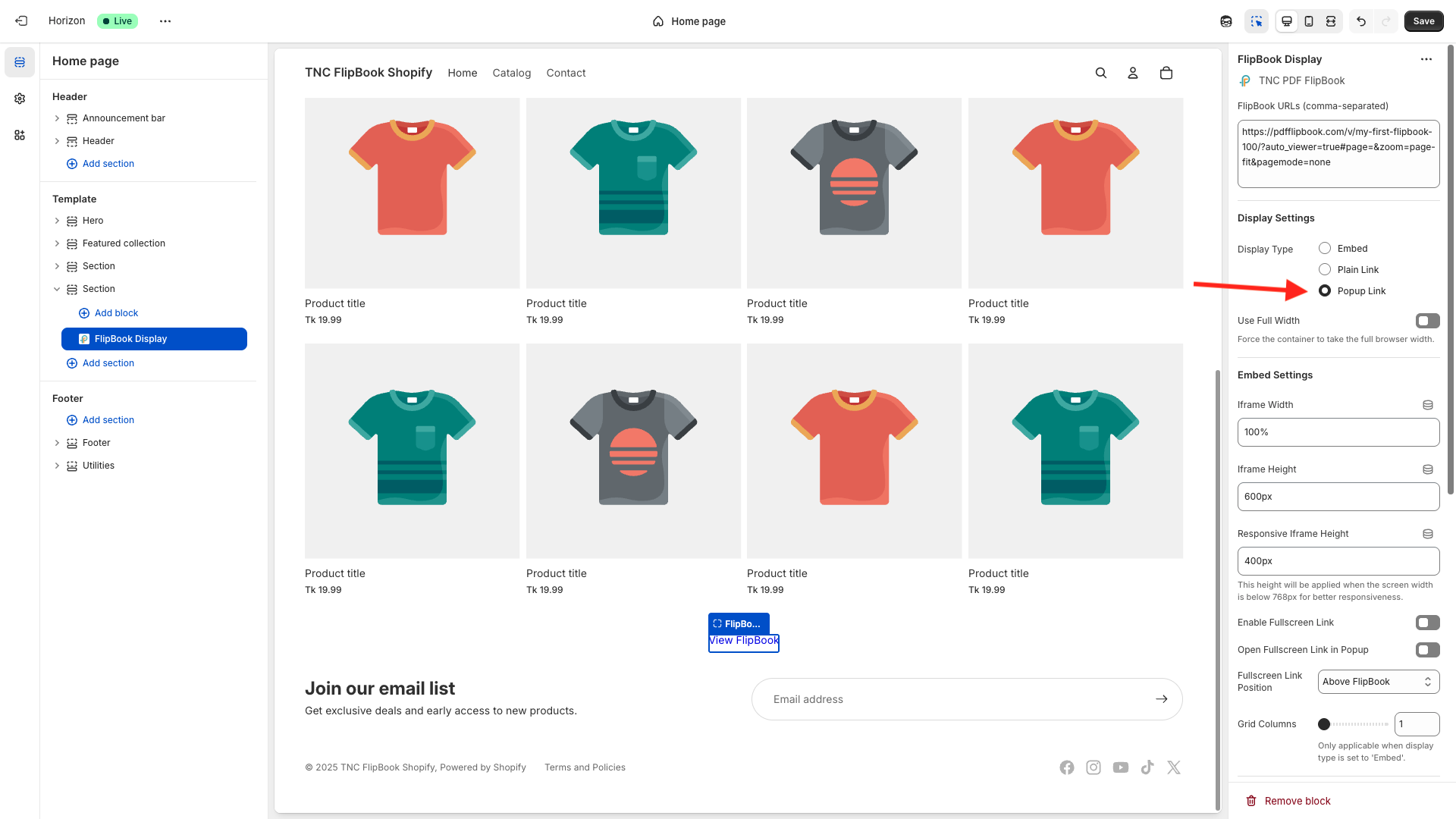
After finding FlipBook Display in the template section, simply click on it, and you will get another interface to configure all the embedding/linking options. You can understand better by looking at the screenshot below.

You will find all the available settings for embedding here. Let's demonstrate each one properly:
FlipBook URLs (comma-separated):
This is the field to insert your FlipBook's URL. At this point, you should already have the FlipBook URL copied to your clipboard if you've been following along the instructions sequentially. If not, simply go back to the previous steps to copy the FlipBook URL. Simply paste the URL in this field once you have the URL copied.
This field supports multiple FlipBook URLs, so if you need to embed multiple FlipBooks on the same page, just insert the URLs separated by comma.
Display Settings:
You will see 3 display types here: Embed, Plain Link, and Popup Link. Select Popup Link option to embed as a link.
Skipping embed options:
We're going to skip the options related to Embed, as those are not necessary for adding a link to FlipBook. Here are the list of fields we're going to ignore: Use Full Width, Iframe Width, Iframe Width, Iframe Height, Responsive Iframe Height, Enable Fullscreen Link, Open Fullscreen Link in Popup, Fullscreen Link Position, Grid Columns.
Link Settings:
The "Link Settings" in the TNC PDF FlipBook Shopify app allows you to control how links within your FlipBook behave and appear. These setting also applies to Fullscreen Link text if you are using embed option with Fullscreen Link. Here’s what you need to know about them:
- Link Text: You can customize the clickable link text, for example, "View FlipBook."
- Link Target: Choose if the link opens in the same window or a new window.
- Link Alignment: Align the link text left, center, or right within its container.
- Link Text Decoration: Set decoration style such as none, underline, overline, or line-through.
- Link Color: You can choose a default color for link text.
- Link Hover Color: You can choose which color the link will change to when you hover over the link.
Custom CSS:
This option lets you add your own CSS code to customize the flipbook’s appearance beyond the default settings. You can add custom CSS here to override styles. Example: .flipbook-grid { background-color: #f5f5f5; }